Import Project
Import Project
- Open STM32CubeIDE, and select a working directory
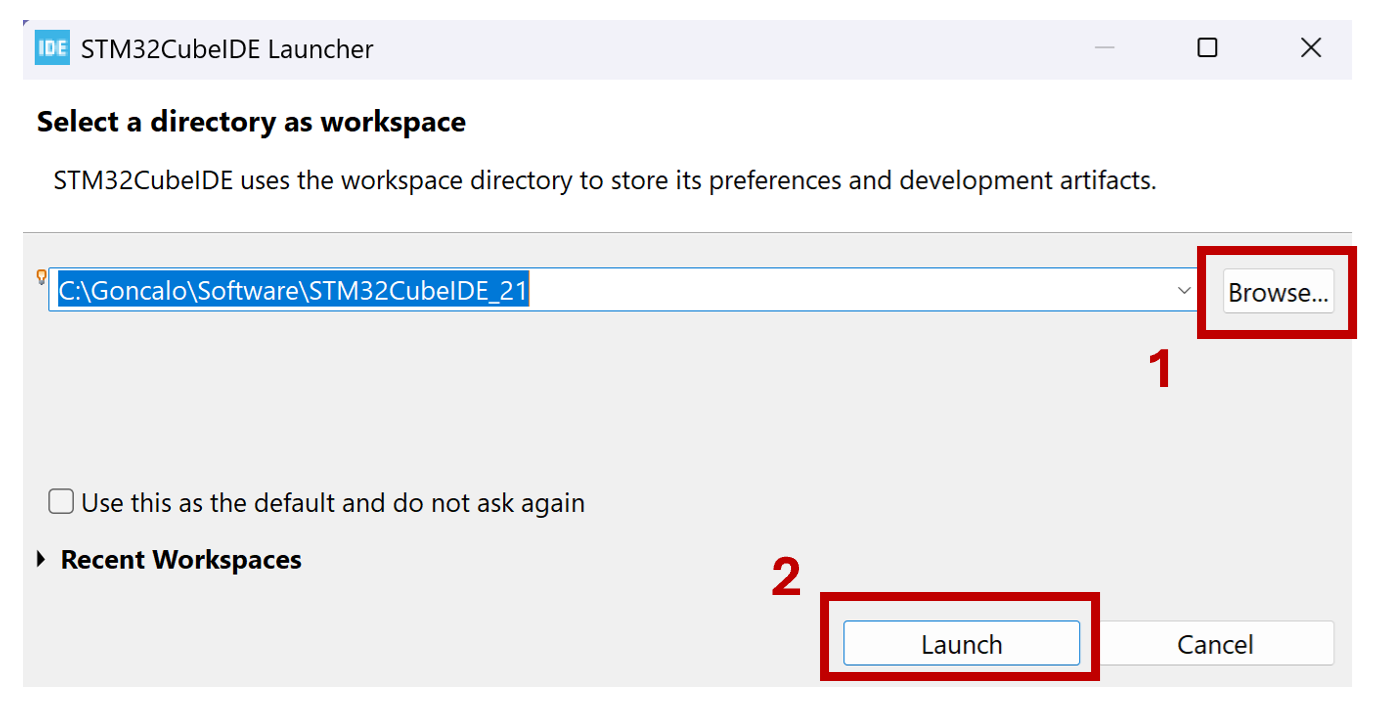
- If you never used STM32CubeIDE and it is the first time importing a project, "Project Explorer" should be empty
- Otherwise make sure that all your other projects are closed.
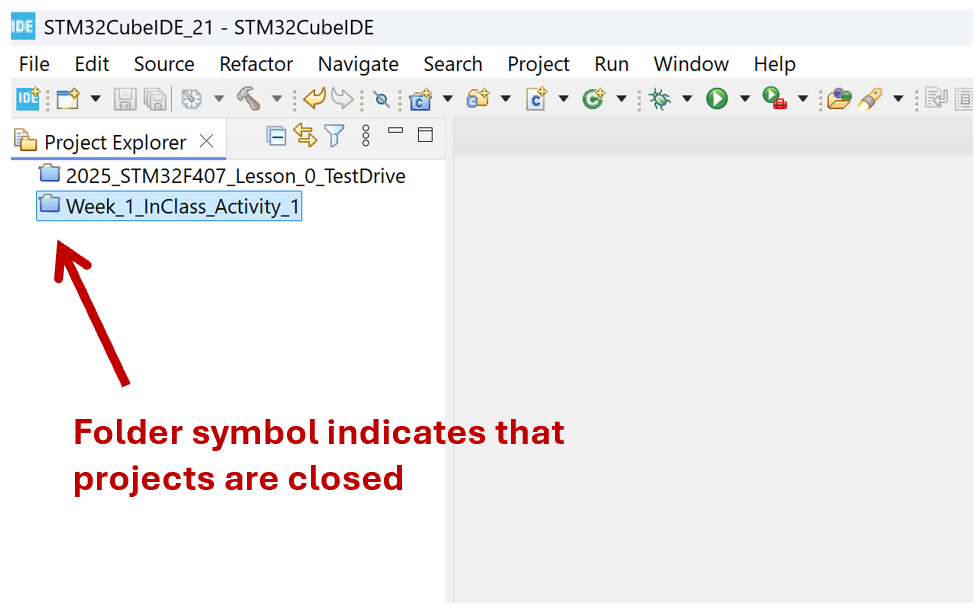
-
Download the "2026_STM32F407_BlinkLED.zip" project from GitHub and unzip it in a place that you know where it is.
-
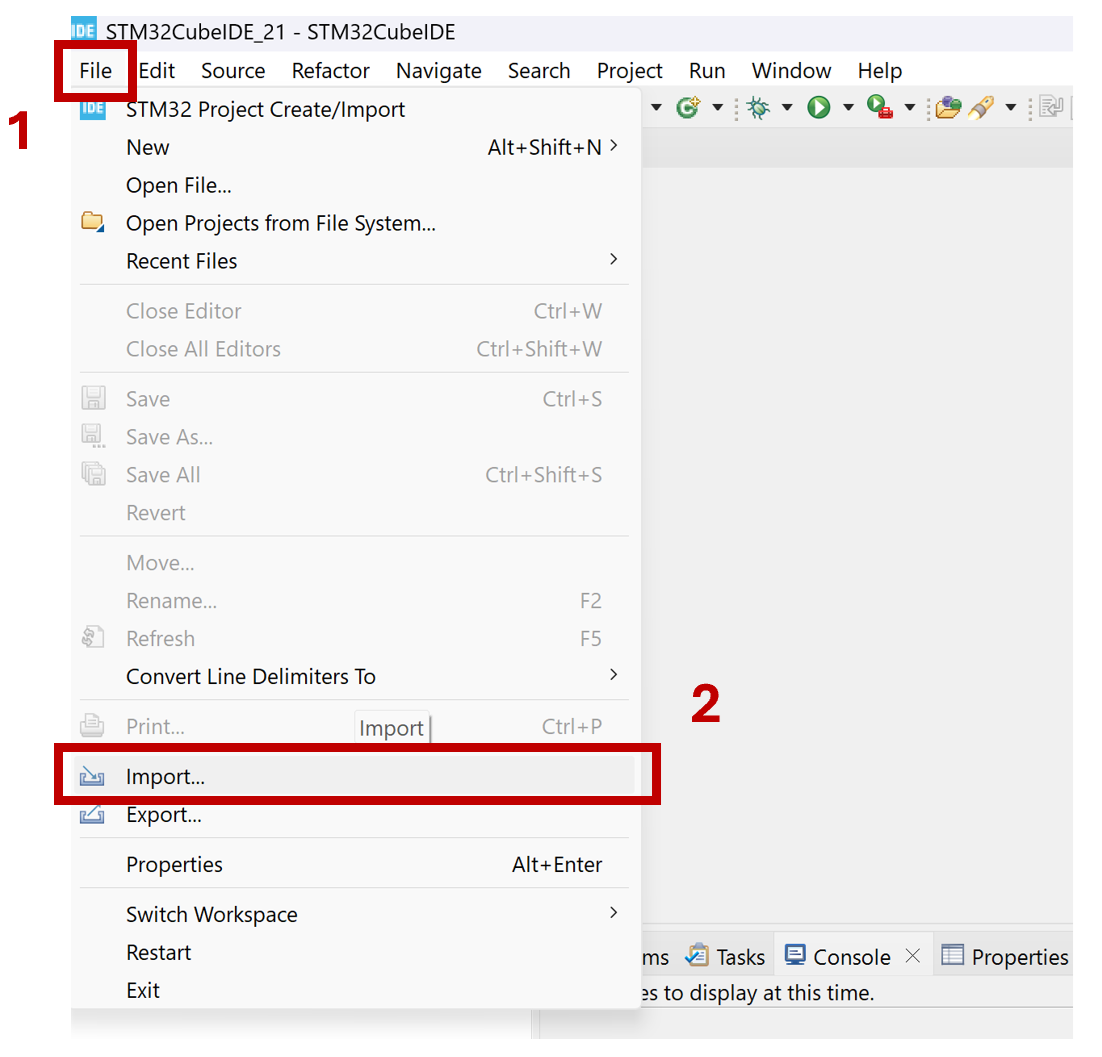
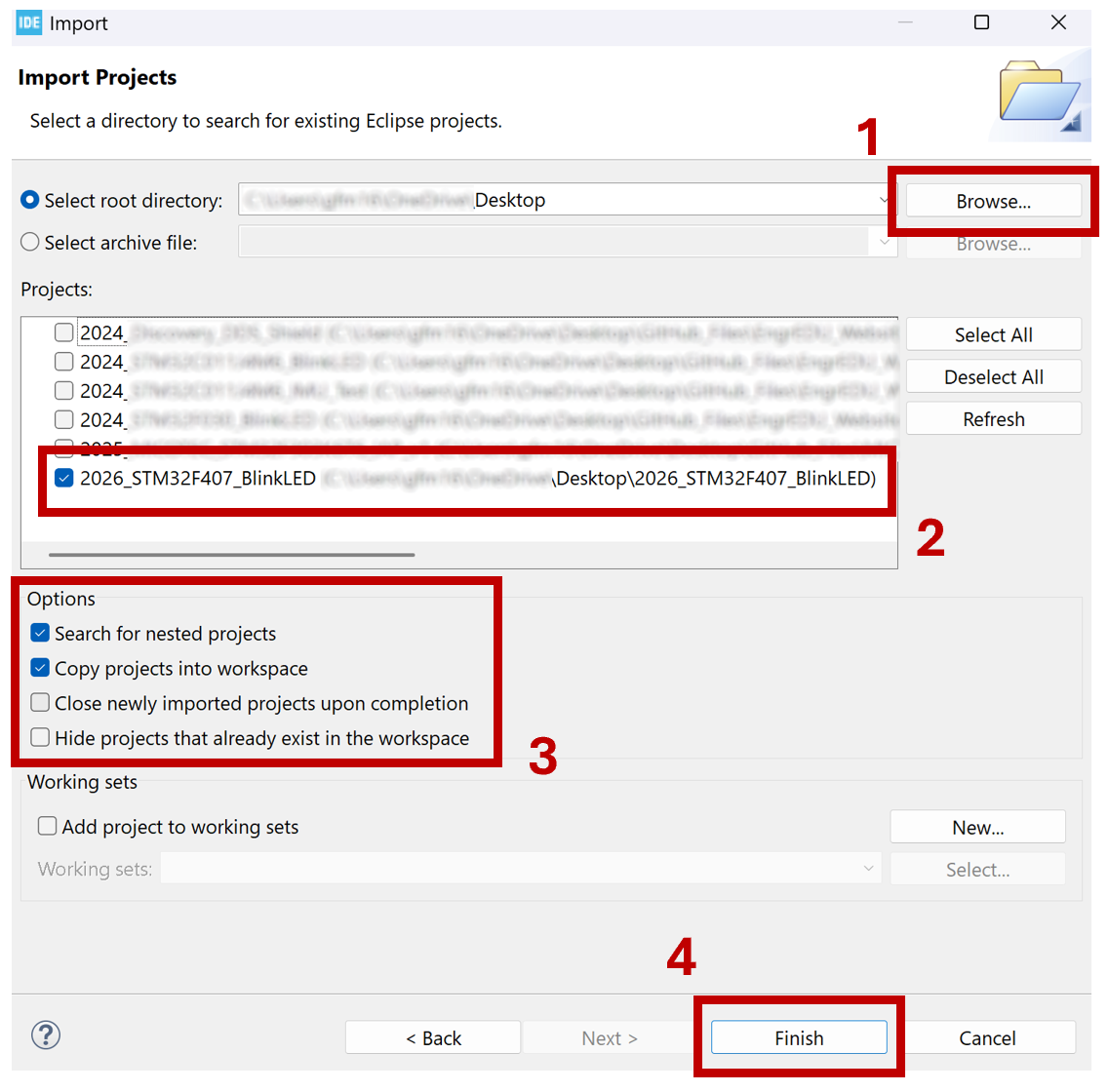
Under STM32CubeIDE, go to "File -> Import"
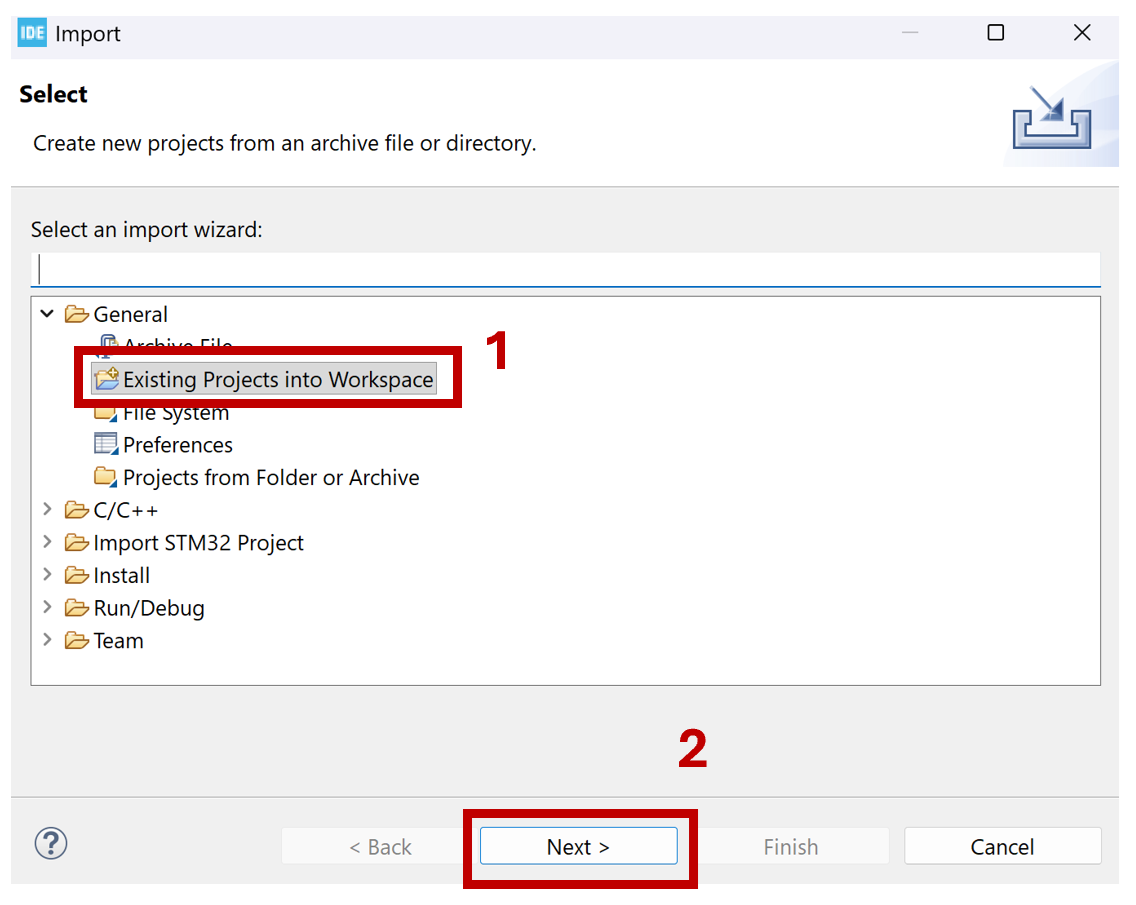
- Select "Existing Projects into Workspace" and press next.
- Point to the directory where you unzip the blink led project
- Select the blink led folder
- Make sure that you select "Copy projects into workspace"
- Press finish
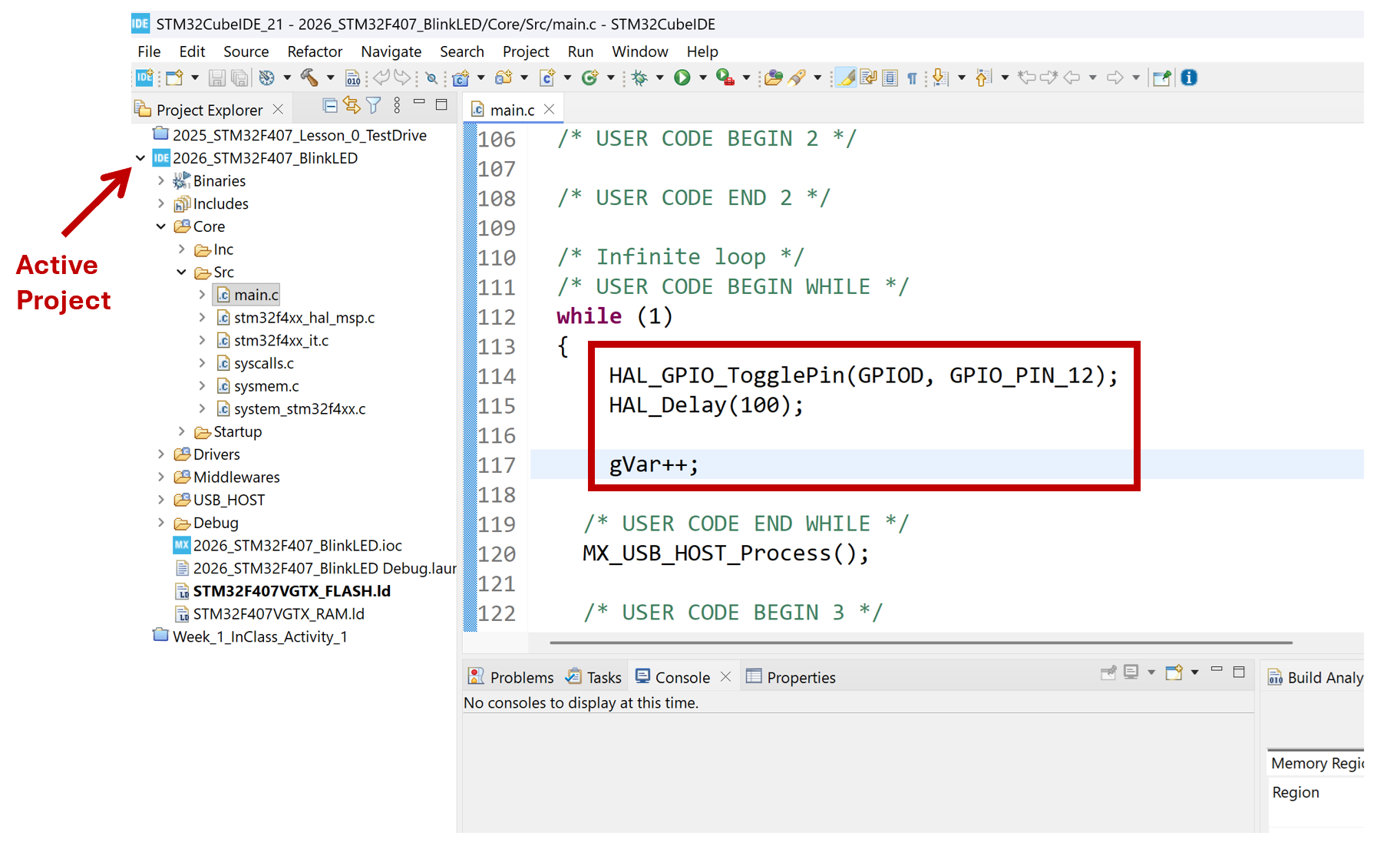
- You should see the imported project activated in the "Project Explorer"
- The code for this project toggles an LED and increments a global variable.
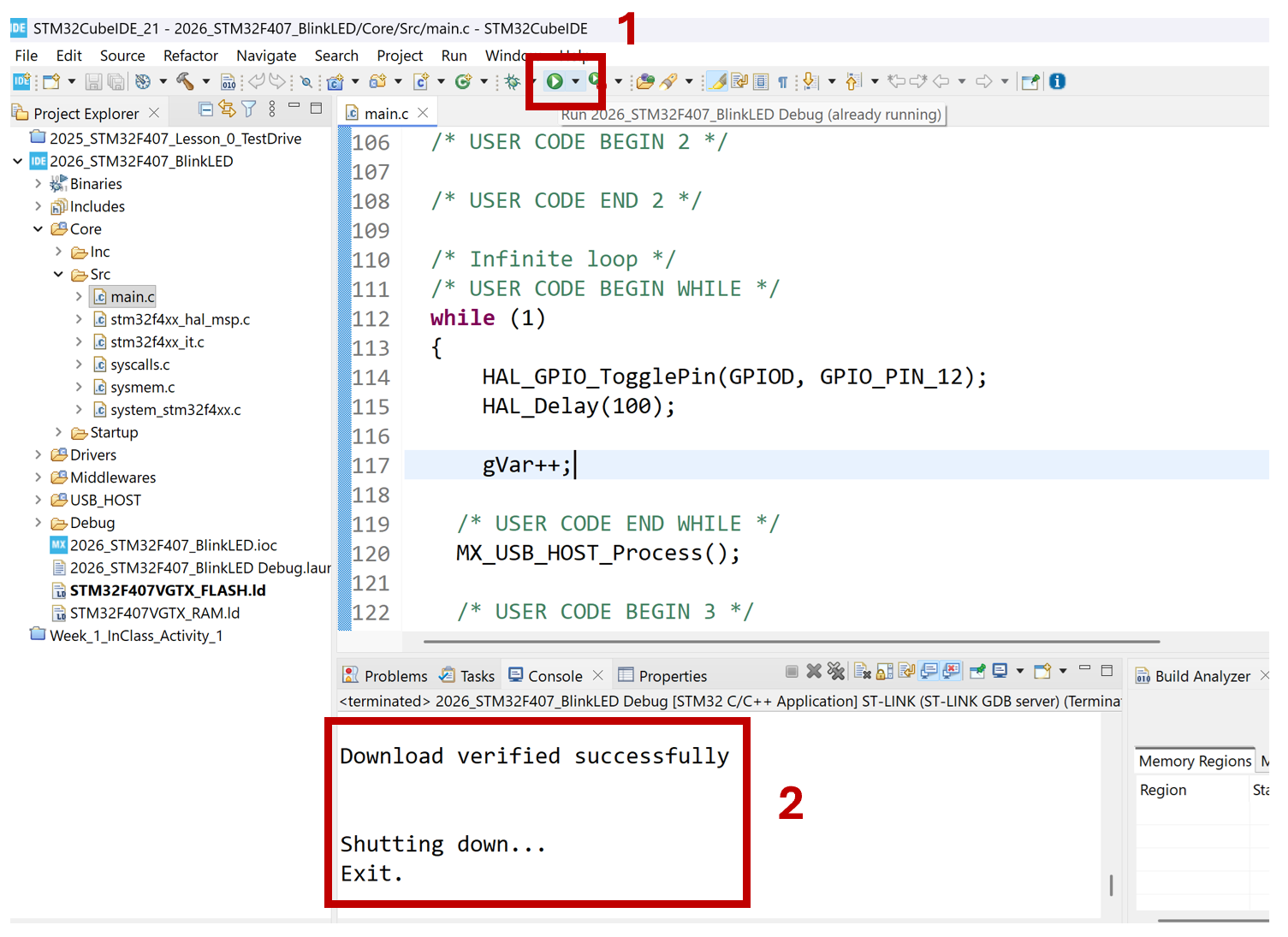
- Compile and program the code into your board.
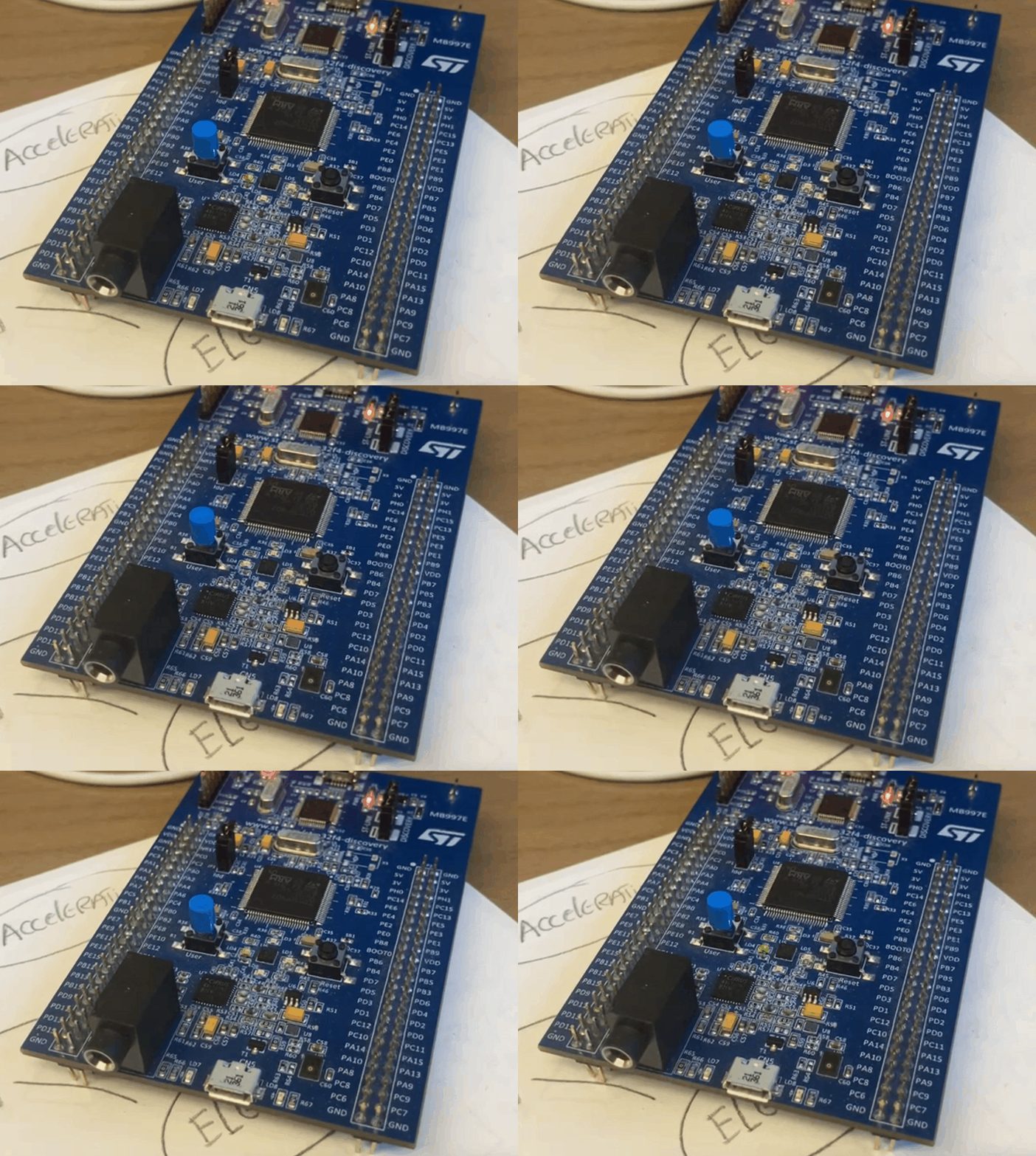
- After that is complete, you should see the LED blinking in your board.
GitHub Repository
- 2026_STM32F407_BlinkLED Example Project
References
None