Installation Directions
Download Software
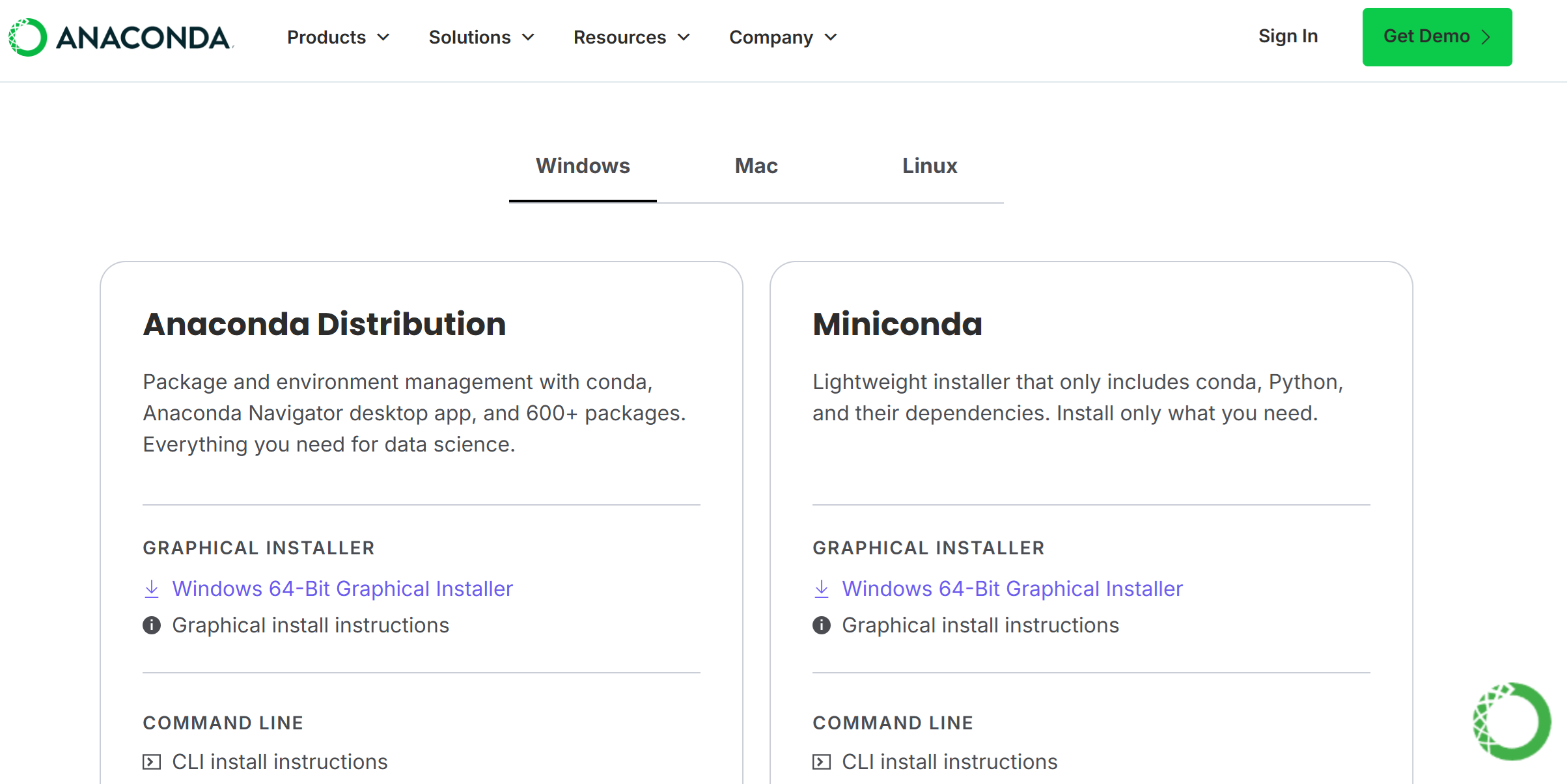
- Download and install Miniconda for your operating system
Note
You might need to add the conda shell command to your system environment variables in order for that command to be available in a terminal.
Set conda env
- Open an anaconda terminal
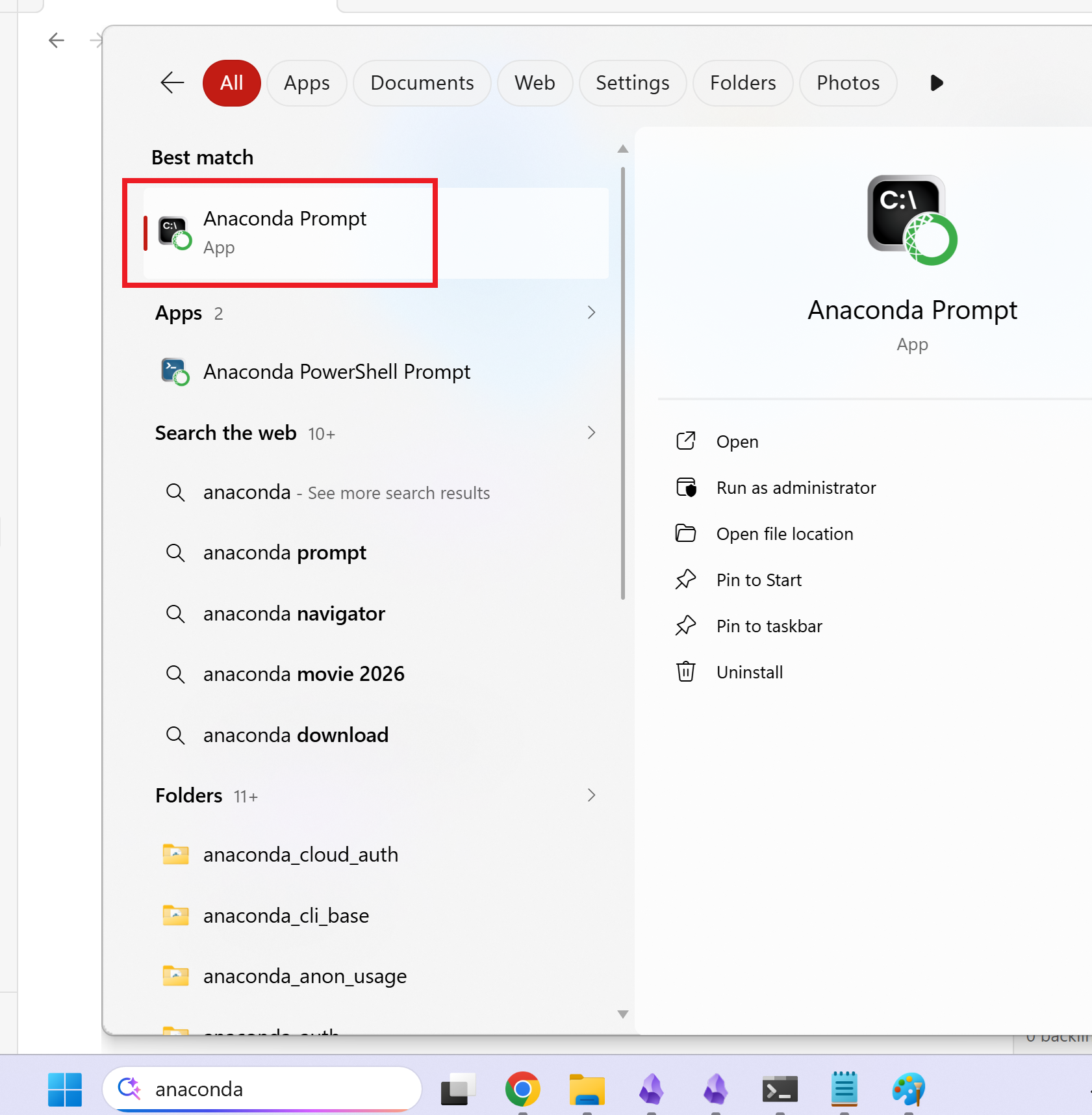
- Create the following conda environment

- Activate engpython-lite environment

Install Jupyter Notebook
- Navigate to the folder that you like to work and install jupyter notebook with the following command

- Then install ipykernel.
- This package is responsible to connect conda environments with jupyter notebook

- Register engpython-lite environment as a jupyter notebook kernel

- Run the "jupyter notebook" command

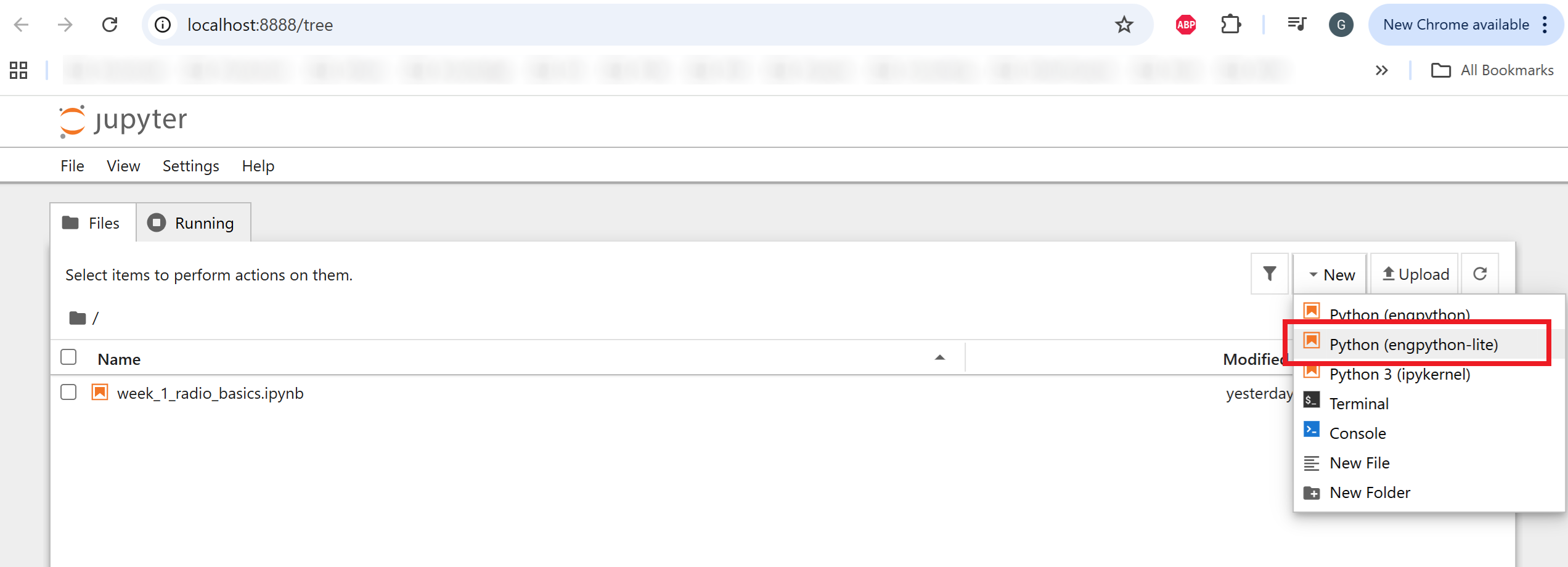
- if all goes well, jupyter will open a webpage in your web browser
- Go to "New" and select "Python (engpython-lite)" to create a project under the engpython-lite conda environment linked as a kernel.
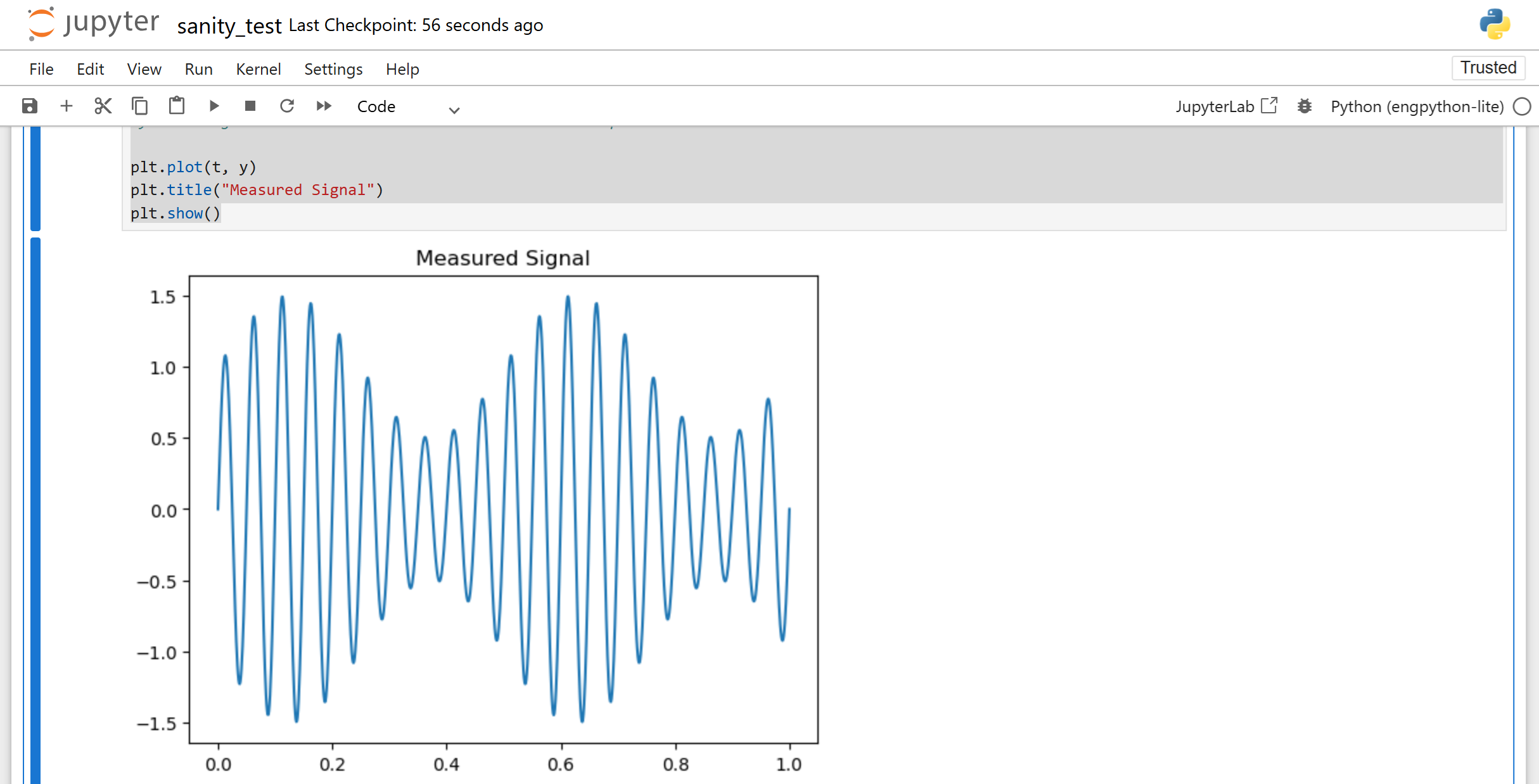
- Write the "sanity_test.py" code below
import numpy as np
import matplotlib.pyplot as plt

t = np.linspace(0, 1, 1000)

fm = 2;
fc = 20;

message = 1 + 0.5*np.sin(2*np.pi*fm*t)   # slow signal
carrier = np.sin(2*np.pi*fc*t)          # fast signal

y = message * carrier
#noise = 0.2*np.random.randn(len(t));
#y = message * carrier + noise # uncomment to see response with noise

plt.plot(t, y)
plt.title("Measured Signal")
plt.show()
- Jupyter Notebook output example
Run Jupyter Notebook
Next time that you need to work with jupyter notebook and with engpython-lite environment do the following set of commands:
- Navigate to your working directory
- Activate engpython-lite
- Start jupyter notebook
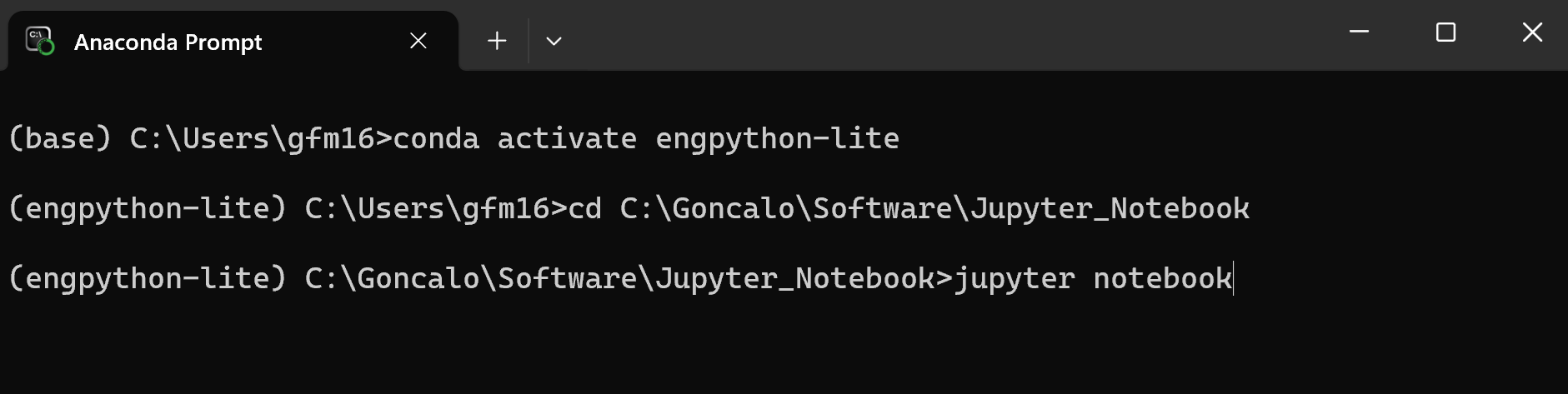
Have fun coding 🙂
GitHub Repository
None