Installation Directions
Download Software
- Download and install Miniconda for your operating system
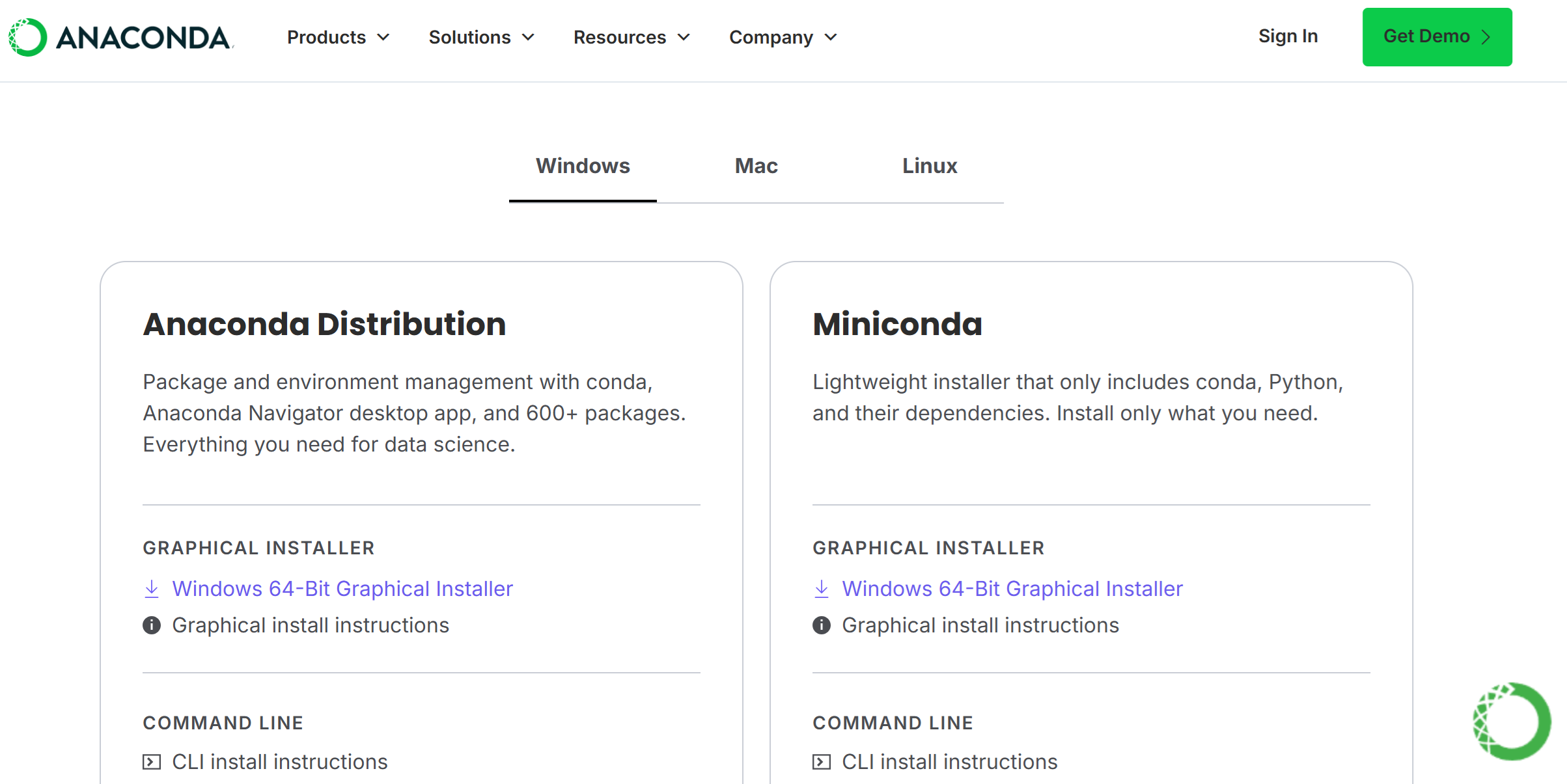
Note
You might need to add the conda shell command to your system environment variables in order for that command to be available in a terminal.
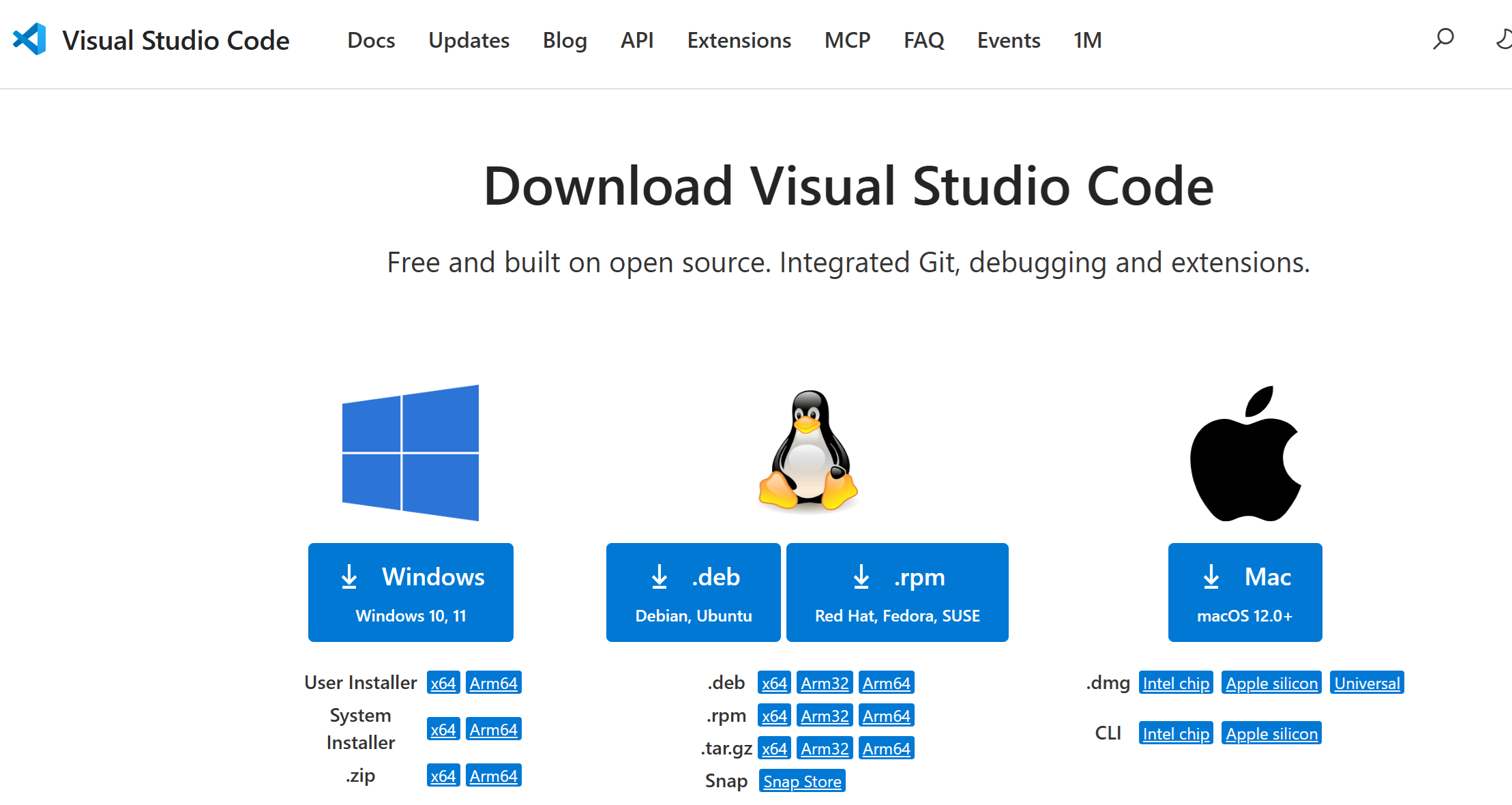
- Download and install VSCode for your operating system
-
Download the installation files from GitHub in known location. You need to have 3 files.
- environment.yml
- sanity_check.py
- sanity_check_v2.py
-
The "environment.yml" file has the commands for conda to install python 3.11 and all the packages under the dependencies label in a new conda environment.
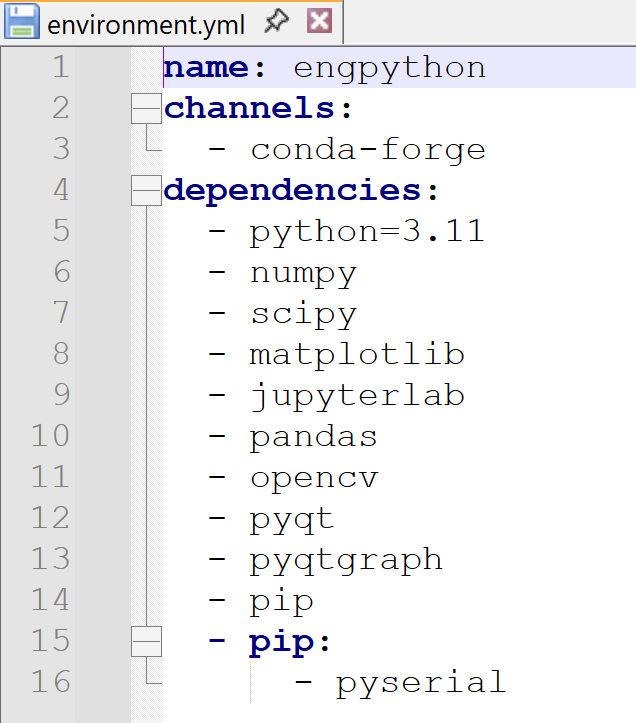
Set conda env
- Open an anaconda terminal
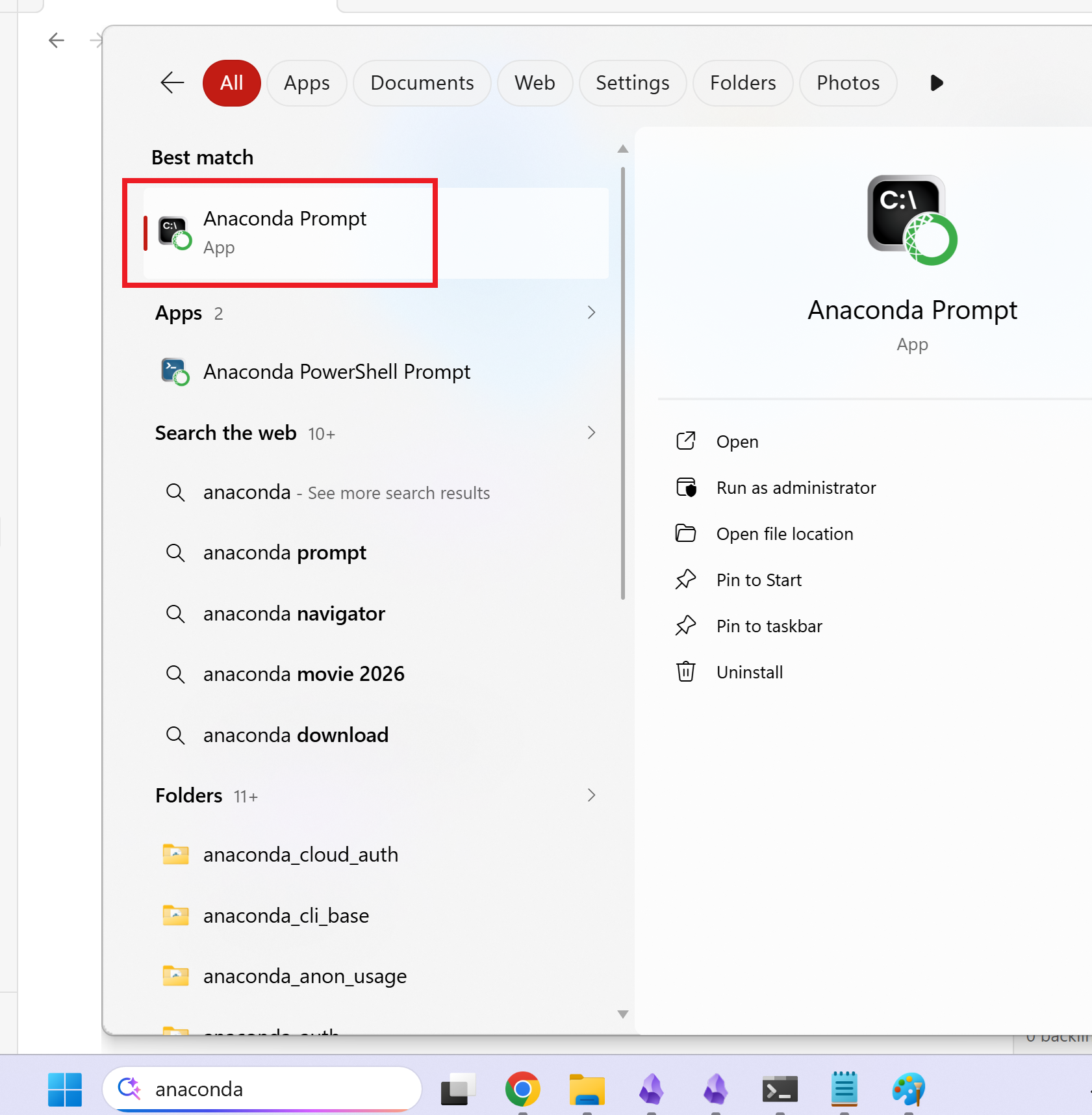
- navigate to the folder where the installation files were saved
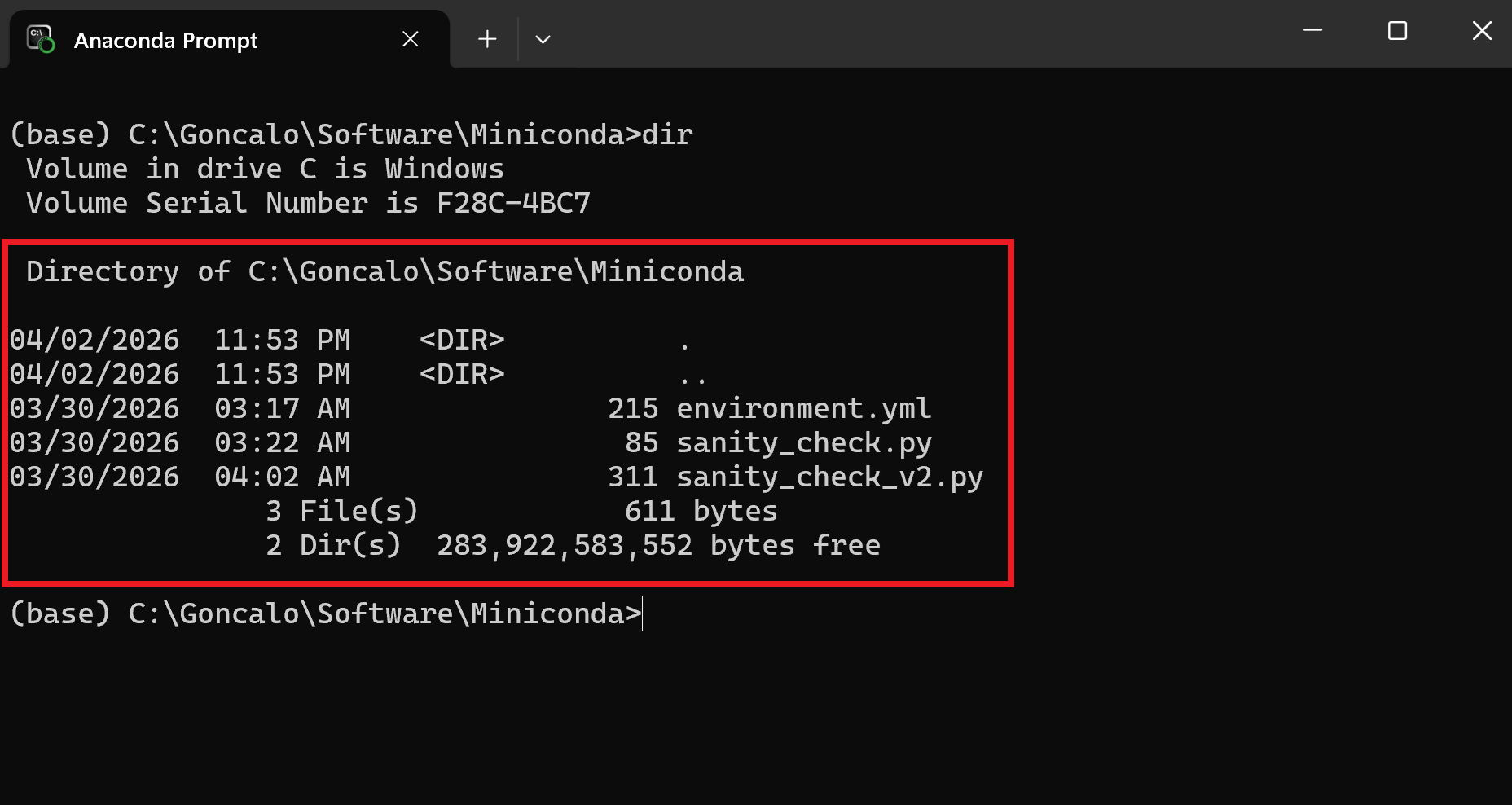
- Run the "environment.yml" file to create a python environment

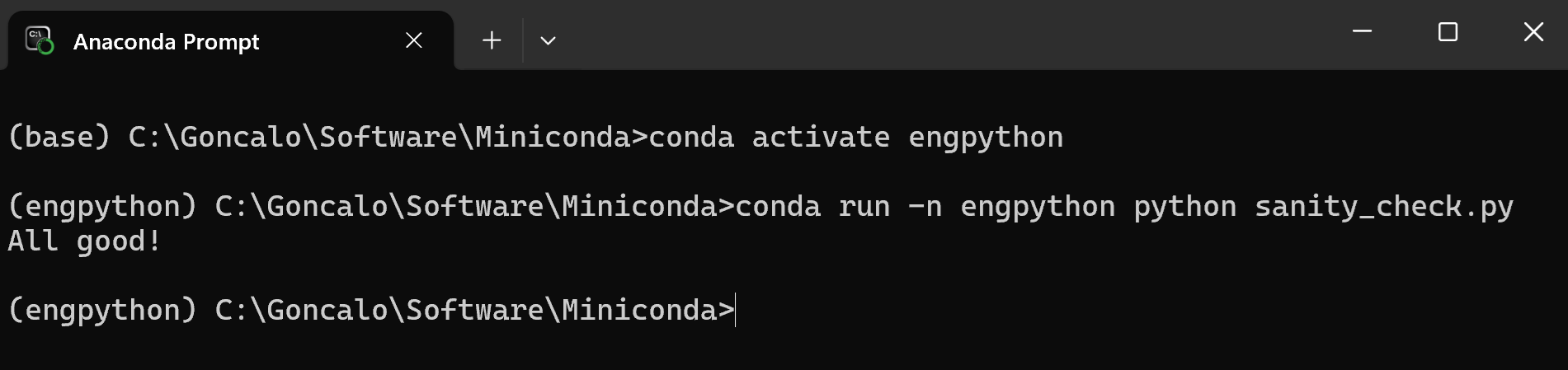
- After the installation is complete, activate the environment

- Let's run the first "sanity_check.py" file to make sure that everything is installed properly
Note
Keep this terminal window open while you are using the engpython conda env. If you close the window the environment will be terminated.
Open VSCode
- Open VSCode and open the folder where you have the installation files saved.
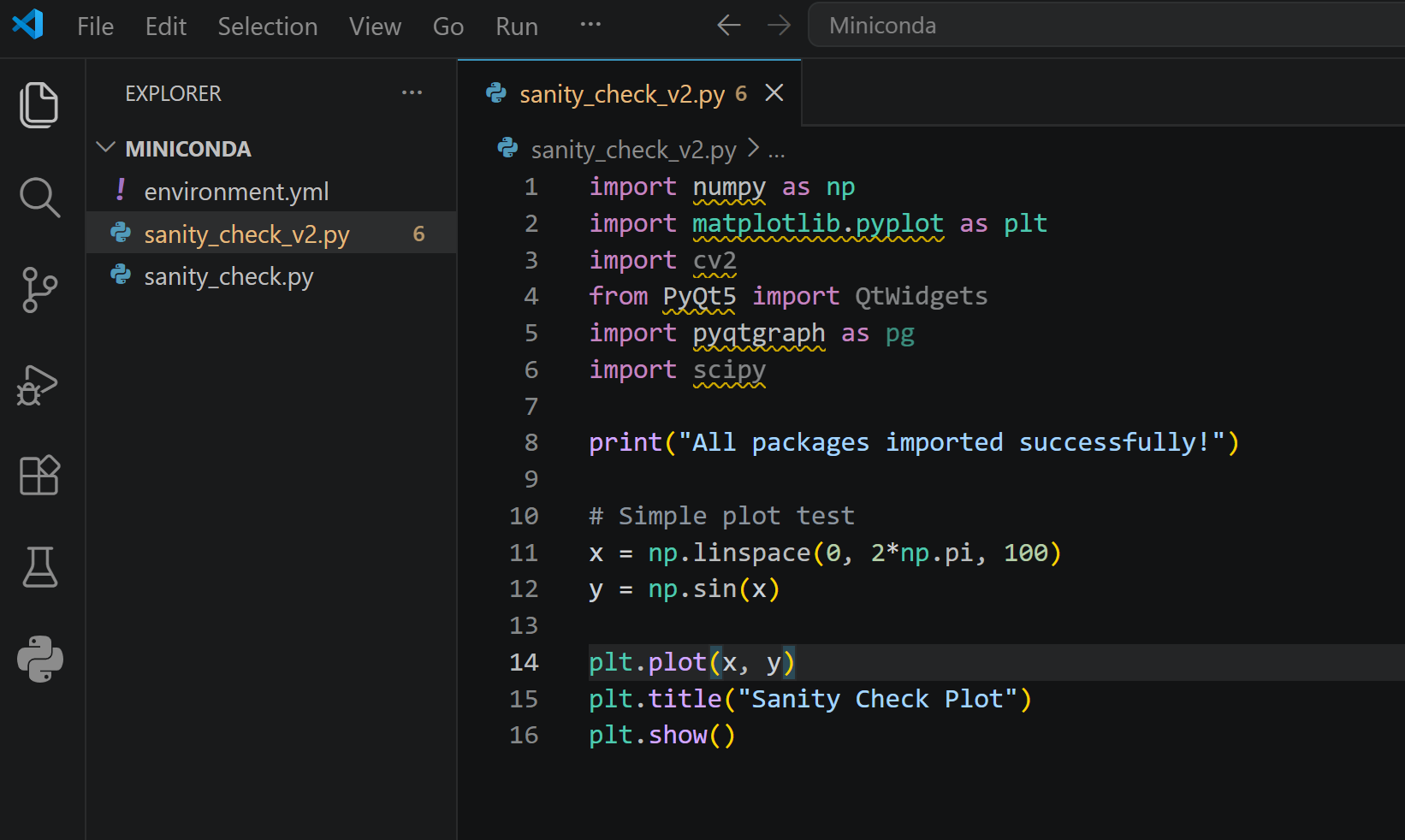
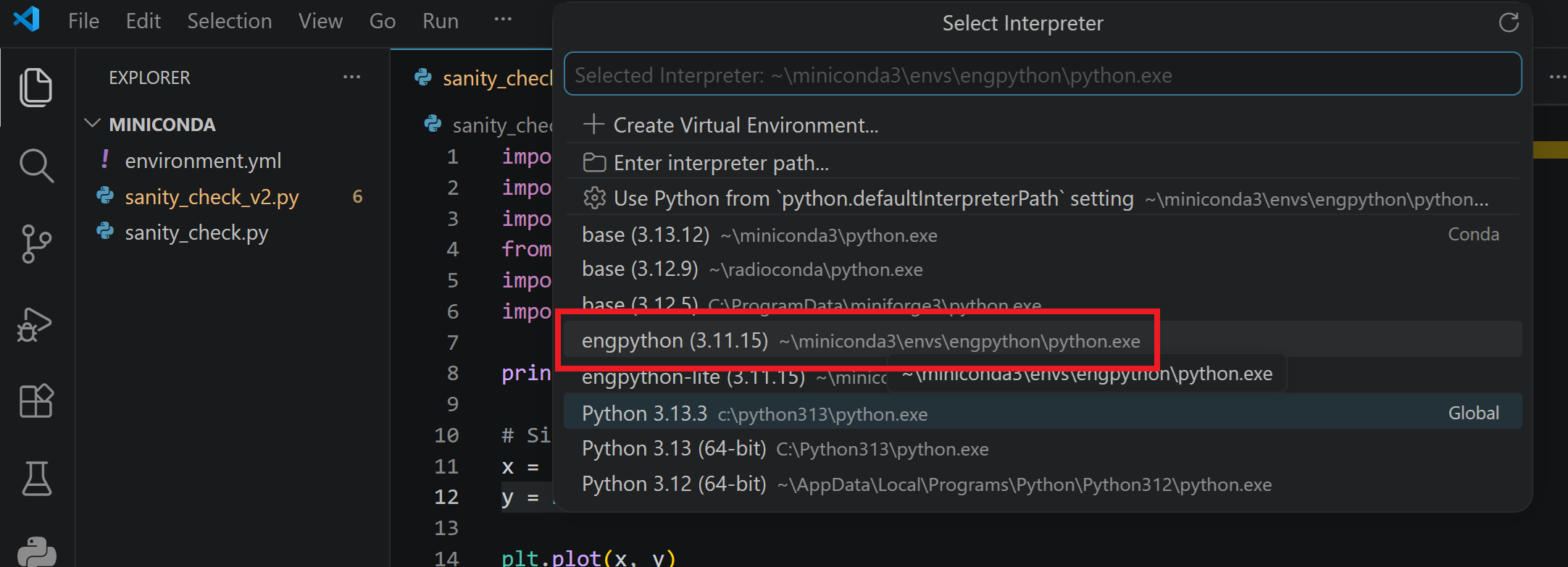
- We need to select the engpython env as the interpreter in order for the code to work.
- Press "ctrl + shift + p" and type "select interpreter"
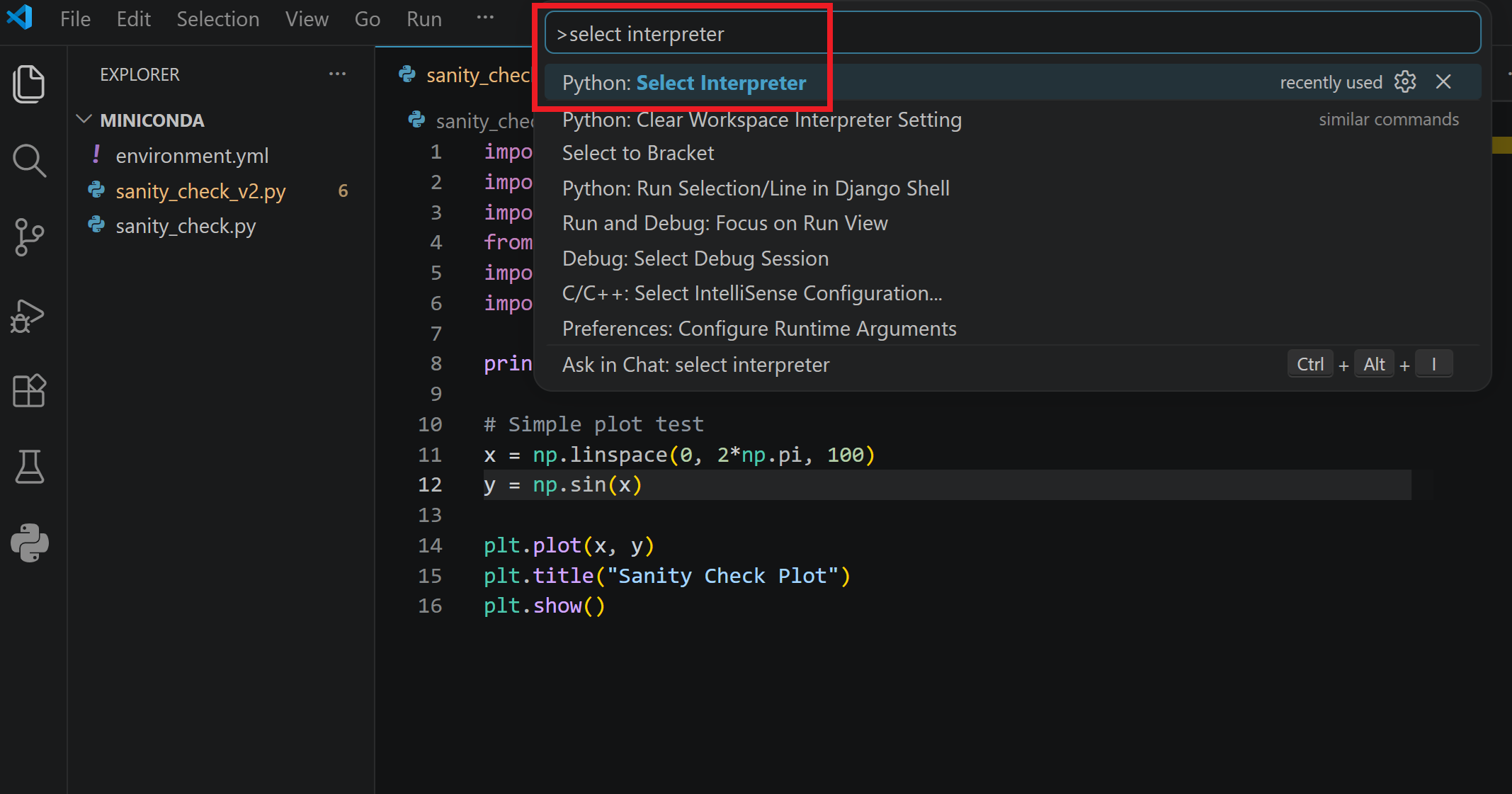
- Find and select "engpython (3.11.15)"
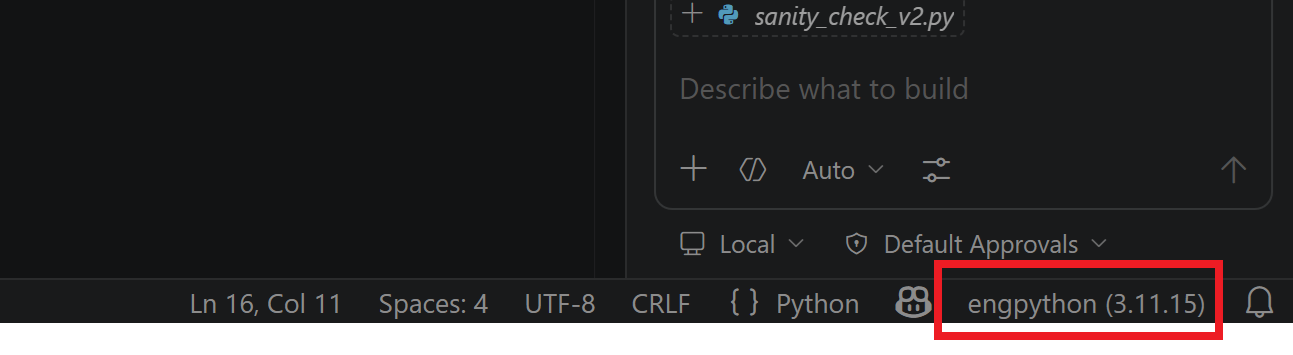
- You should see the correct interpreter name at in the bottom right of the IDE.
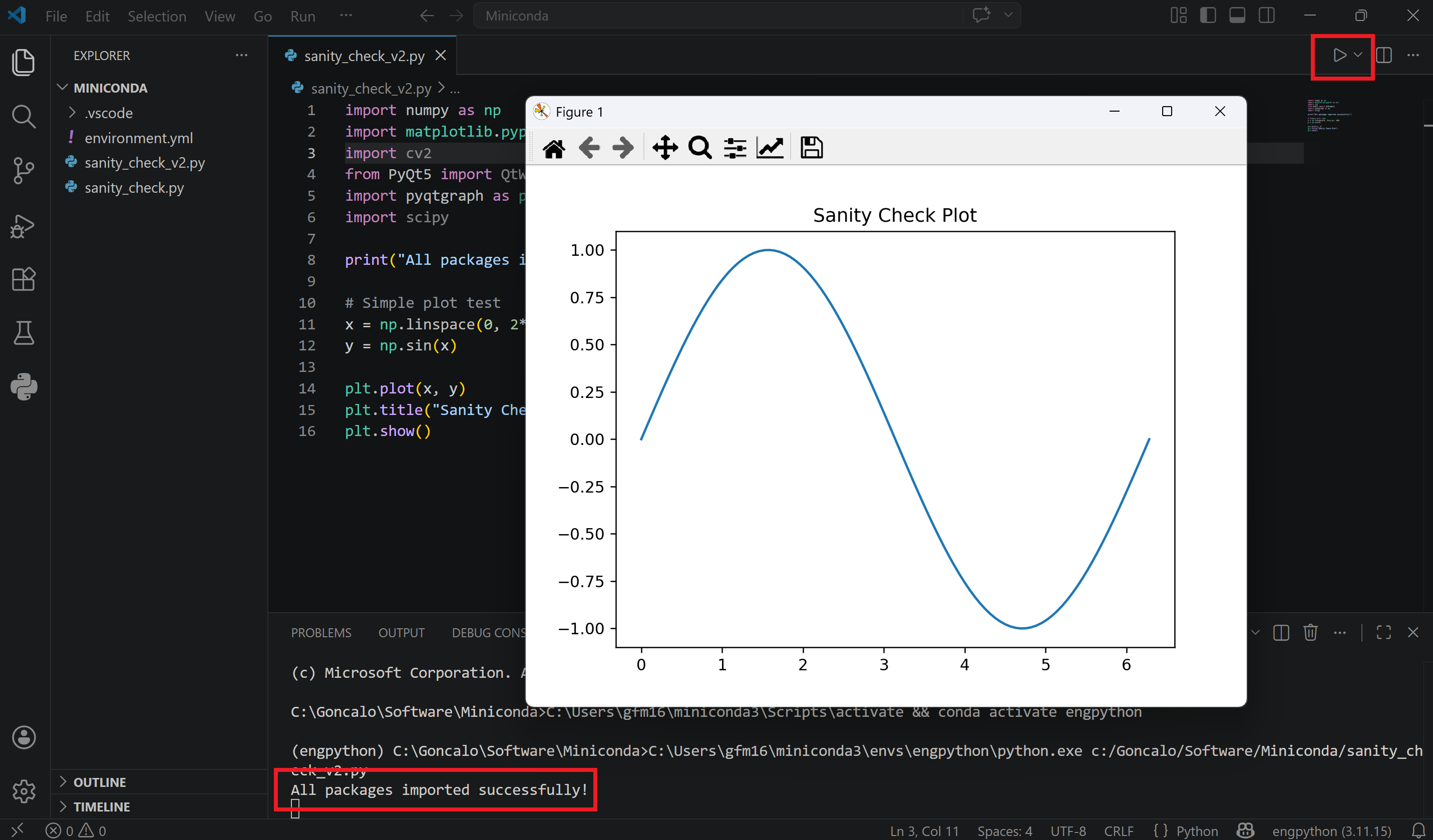
- Run "sanity_check_v2.py" and if all goes well you should see a plot showing up on the screen.
Have fun coding 🙂
GitHub Repository
References
None